
How to Restore a Missing Plotstyle Table in AutoCAD: A User-Friendly Guide 2023
- October 6, 2023
Hello, fellow AutoCAD enthusiast! If you’ve stumbled upon this article, there’s a good chance you’re scratching your head over a missing plotstyle table. But don’t shake! We’ve all been there, and with this friendly guide, you’ll be back on track in no time. Let’s dive in and demystify how to restore a missing plotstyle table in autocad
What is a Plotstyle Table?
Before we jump into the restoration process, let’s understand what a plotstyle table is. In simple terms, it’s a collection of settings that determine how the objects in your drawing are plotted (printed).
The settings include color, line weight, and more. There are two types of plot styles: Color-dependent plot style tables (CTB) and Named plot style tables (STB). Got it? Great! Let’s move on to how to restore a missing plotstyle table in AutoCAD.
Why Do Plotstyle Tables Go Missing?
Plotstyle tables in AutoCAD can go missing for different reasons. Here’s a more detailed breakdown of why this can happen:
Accidental Deletion:
This is perhaps the most common reason. In a bid to clean up files or manage disk space, users might inadvertently delete or move essential files, including the plotstyle tables.
Transferring Drawings:
When drawings are transferred between different computers or shared among colleagues, the recipient’s computer may not have the required plotstyle table. If the drawing references a specific plotstyle not present in the recipient’s system, it will appear as missing.
Software Updates or Reinstallation:
Sometimes, when updating AutoCAD to a newer version or reinstalling it, custom settings and files might not transfer perfectly. This can result in missing plotstyle tables if the software doesn’t detect or misplaces them during the process. Simply learn how to restore a missing plotstyle table in AutoCAD and handle the situation.
Corrupted Files:
If there are sudden system crashes or software glitches, files can get corrupted. This includes plotstyle tables. A corrupted file might not be readable, effectively making it “missing” even if it’s still in its folder.
Incorrect Paths:
AutoCAD references plotstyle tables based on file paths. If the path to the plotstyle folder is incorrect (maybe due to system changes or folder movements), AutoCAD won’t be able to locate the tables, making them appear as if they’re missing.
Network Issues:
For organizations that store their plotstyle tables on a network drive, connectivity issues or changes in network folder structures can make these tables inaccessible, and thus they appear missing.
User Profiles:
In AutoCAD, user profiles store personalized settings for each user. If a user switches to a different profile, they might not see the same plotstyle tables, especially if those tables were specific to the original profile.
Drawing-Specific Plotstyles:
Some drawings may have been created with a unique plotstyle table specific to a particular project. If you open such a drawing without the requisite plotstyle table on your system, it will be flagged as missing.
The first step in troubleshooting is to understand why plotstyle tables might go missing. The next step is how to restore a missing plotstyle table in AutoCAD, ensuring a smooth plotting process.
How To Restore A Missing Plotstyle Table In Autocad
Regardless of the reason, let’s find out how to restore a missing plotstyle table in AutoCAD.
1. Check Your Plot Style Folder
Before you attempt anything else, it’s good to confirm if the plot style is actually missing or if AutoCAD just isn’t referencing it correctly.
Step 1: Launch AutoCAD and click on the Application Menu (it’s the big ‘A’ at the top-left corner).
Step 2: Hover over “Print” and then choose “Manage Plot Styles”. This action opens the folder containing your plotstyle tables.
Step 3: Examine this folder to see if your missing plotstyle table (either CTB or STB file) is present. If it’s there, the issue might be with AutoCAD not referencing it properly.
2. Resetting the Path to Your Plot Styles
AutoCAD looks in a specific folder path to find plotstyle tables. If this path is wrong, it won’t find your plot styles, even if they’re there.
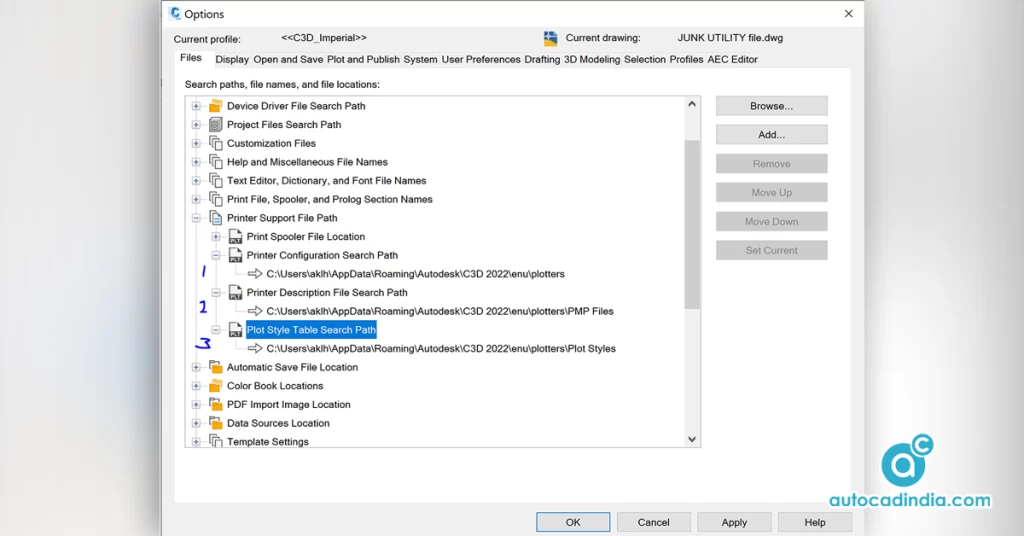
Step 1: In AutoCAD, type “Options” into the command line and hit Enter.
Step 2: In the “Options” dialogue box that appears, select the “Files” tab.
Step 3: Navigate to “Printer Support File Path” and expand its options.
Step 4: Click on “Plot Style Table Search Path”. Ensure it’s set to the correct folder (usually the one you opened in the first step). If it’s not, modify the path to point to the correct folder.
3. Importing a Plotstyle Table from Another Location
If the plotstyle table is genuinely missing from your usual folder but you have it saved elsewhere (or received from a colleague):
Step 1: Locate the CTB or STB file on your computer or external source.
Step 2: Copy this file.
Step 3: Navigate back to the plot style folder (as in the first step) and paste the copied file here.
4. Using AutoCAD’s Default Plotstyles
If you can’t find your specific plotstyle but need to keep working:
Step 1: Go to the plot style folder (as you did in the first step).
Step 2: AutoCAD usually has some default CTB files, like monochrome.ctb. You can use one of these as a temporary or even permanent solution if it meets your needs.
5. Create a New Plotstyle Table
If you can’t recover the missing plotstyle table, you might need to recreate it:
Step 1: Open AutoCAD and navigate to “Page Setup Manager”.
Step 2: Choose “Modify”.
Step 3: Under the “Plot Style Table” section, click on the dropdown menu and select “New”. Follow the on-screen prompts to create a new table, adjusting settings as necessary for your project.
6. Backup Regularly
Once you’ve resolved how to restore a missing plotstyle table in AutoCAD, consider setting a reminder to back up these tables regularly. Storing them on a cloud service or external drive can save you a lot of time and frustration in the future.
In summary,
So, now you know how to restore a missing plotstyle table in AutoCAD. While it can be distressing to find a plot-style table missing, with a systematic approach, you can usually restore or recreate what you need.
Phew! That wasn’t too bad, was it? Remember, AutoCAD is a powerful software with lots of intricacies. But with a little patience and guidance (like this article!), you can overcome any challenge, like how to restore a missing plotstyle table in AutoCAD. Happy drafting!
We share regular articles on AutoCAD and other Drafting Services. Keep an eye out for more!