Introduction
Point cloud technology has become an important part of modern Building Information Modeling (BIM), particularly for renovation, as-built documentation, infrastructure projects, and reality capture. However, working with large point cloud files in Autodesk Revit can create performance challenges, including slow navigation, delayed loading, increased memory usage, and reduced modeling efficiency.
Large laser-scanned datasets may contain millions or billions of points, depending on the size and complexity of the scanned environment. Without proper preparation and management, these datasets can make Revit projects difficult to handle.
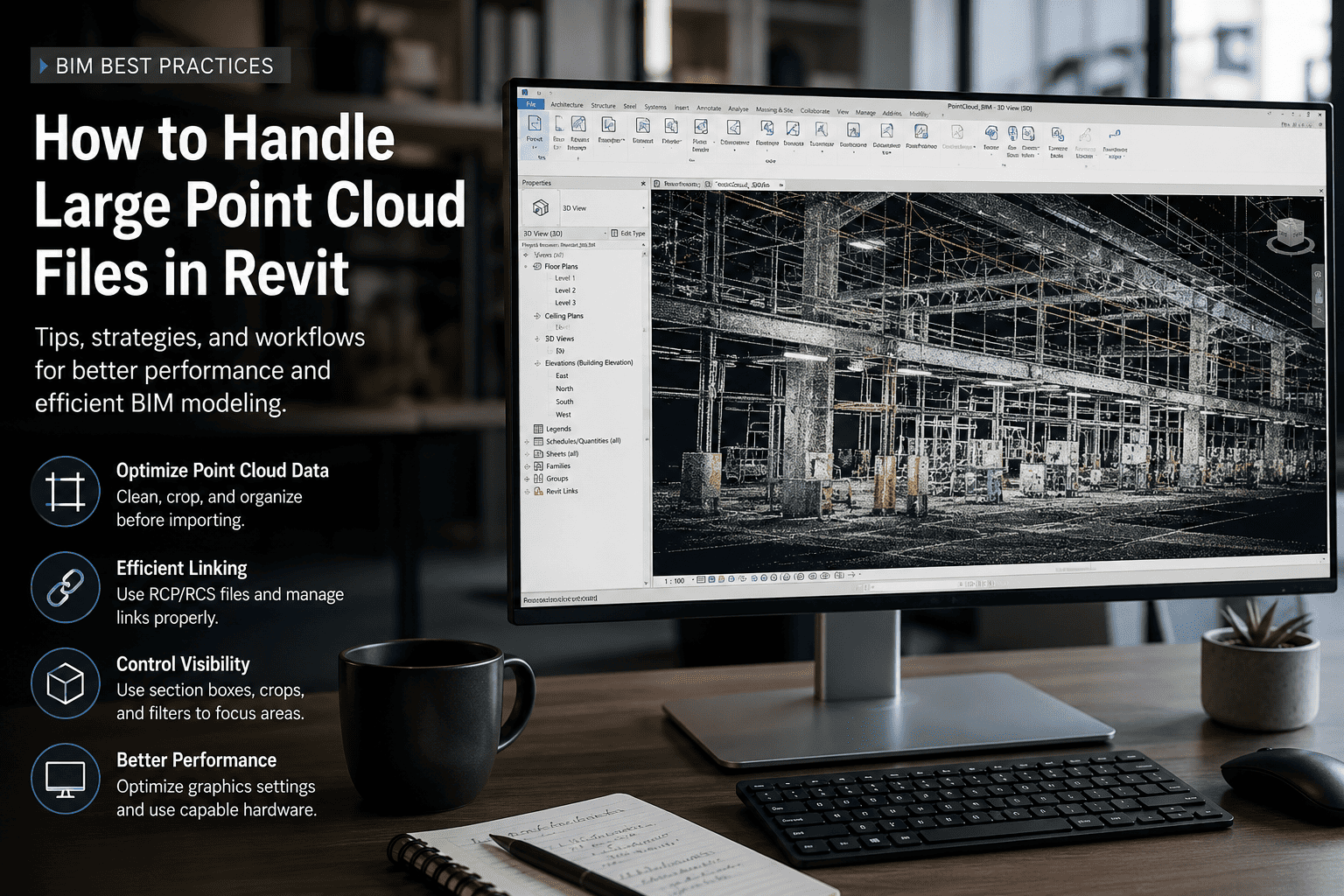
The key to managing large point cloud files in Revit is to optimize scan data, organize linked files, control visibility, and maintain an efficient BIM modeling workflow.
In this article, we explore 10 practical techniques to help BIM professionals manage large point cloud datasets more effectively.
1. Prepare and Optimize Point Cloud Data Before Importing
One of the most important steps takes place before linking the point cloud into Revit. Unnecessarily large or poorly organized datasets can affect project performance and make modeling more complicated.
Autodesk ReCap Pro or compatible point cloud processing software can be used to prepare scan data before it enters the BIM workflow.
Recommended practices:
-
Remove unnecessary scan regions and unwanted points.
-
Crop the dataset to the actual project area.
-
Divide large surveys into floors, zones, or structural sections.
-
Check scan registration and remove obvious noise.
-
Save the processed data in an appropriate supported format.
For example, when modeling a specific floor of a large building, focus on the scan data relevant to that floor rather than processing the entire building unnecessarily.
A well-prepared dataset makes the modeling process more organized and reduces the need to handle irrelevant scan information.
2. Use RCP and RCS Files Efficiently
Autodesk Revit supports point cloud workflows using Autodesk ReCap project files and scan files. Understanding these formats helps maintain an organized project structure.
-
RCP (ReCap Project): A project file that references an organized point cloud dataset, potentially containing multiple scans.
-
RCS (ReCap Scan): A file containing point cloud scan data.
For many projects, processing scan data in ReCap and linking the resulting RCP project into Revit provides a practical workflow.
Keep the RCP file and its associated scan files organized in a dedicated project folder. When transferring projects between computers or sharing them with team members, ensure that all required files remain accessible.
Avoid creating unnecessary copies of large datasets, as duplicated files can consume storage and complicate project management.
3. Manage Linked Point Clouds Properly
Linking point cloud data into Revit allows you to use the existing scanned environment as a reference while developing BIM geometry.
However, poor file management can lead to missing references, incorrect positioning, and unnecessary workflow interruptions.
Follow these best practices:
-
Store point cloud files in a dedicated project directory.
-
Use consistent file names and folder structures.
-
Avoid linking the same dataset multiple times without a clear reason.
-
Verify coordinate systems and positioning before modeling.
-
Check linked-file paths when transferring projects to another workstation.
For collaborative BIM projects, establish a consistent file-management procedure so all team members work with the correct scan data.
Proper linking and coordination help maintain a reliable reference throughout the Scan-to-BIM process.
4. Control Point Cloud Visibility in Revit
Displaying an entire point cloud in every view can make modeling difficult, especially when working with large buildings, industrial facilities, or complex structures.
Revit provides view-management tools that help isolate the areas required for specific modeling tasks.
Useful techniques include:
-
Use section boxes to isolate areas in 3D views.
-
Apply crop regions to plans, elevations, and sections.
-
Hide point clouds in views where they are unnecessary.
-
Use available visibility settings to manage scan regions.
-
Create dedicated views for scan inspection and BIM modeling.
For example, when modeling a building floor, focus on the relevant floor area instead of viewing the entire building. For a telecommunication tower, isolate the foundation, lower tower, or antenna platform as needed.
These techniques improve visual clarity and help you concentrate on the geometry required for the current task.
5. Optimize Revit Graphics and View Settings
Revit graphics settings can influence the user experience when working with complex models and large point cloud datasets. Simplifying working views may improve navigation and viewport responsiveness, depending on the hardware and dataset.
Consider the following adjustments:
-
Use suitable visual styles for routine modeling.
-
Avoid unnecessary shadows and graphics-intensive effects.
-
Reduce the number of complex elements displayed in working views.
-
Close unused views when they are no longer required.
-
Reserve presentation-quality settings for visualization tasks.
The objective is to maintain a clear view of the scanned geometry without adding unnecessary graphics overhead.
A practical approach is to use simplified views during modeling and switch to more detailed settings when checking geometry or preparing presentations.
6. Divide Large Projects into Manageable Sections
Working with an entire large point cloud dataset at once is not always necessary. Dividing projects into logical work areas can make modeling easier to organize and manage.
The appropriate division depends on the project type.
Examples include:
-
Buildings: Separate floors, wings, and building zones.
-
Industrial facilities: Divide equipment areas, structural bays, and service zones.
-
Telecommunication towers: Separate foundations, lower and upper tower sections, antenna platforms, and equipment.
-
Infrastructure: Organize individual structures, site zones, and assets.
Where appropriate, use separate point cloud subsets or Revit models for different work areas. Maintain consistent coordinates and a clear linking strategy to preserve alignment between project components.
This approach reduces unnecessary complexity while maintaining the spatial context required for accurate BIM modeling.
7. Improve Hardware Performance
Hardware plays an important role when handling large point cloud files in Revit. The right workstation configuration can improve navigation, loading, and general modeling performance.
Consider these key components:
-
RAM: Sufficient memory helps Revit and point cloud processing software operate alongside other applications.
-
CPU: A capable processor supports Revit modeling operations and general project processing.
-
SSD storage: Fast solid-state storage can improve file access and loading operations.
-
GPU: A suitable graphics card can improve viewport responsiveness, depending on the workload.
In addition, avoid running unnecessary memory-intensive applications while working with large datasets. Keep graphics drivers and supported software versions updated.
Hardware requirements vary according to point cloud size, model complexity, and project scope. Therefore, evaluate the complete workflow rather than assuming that upgrading a single component will resolve every performance issue.
8. Keep the Revit Model Lightweight
Point cloud data is only one part of a BIM project. An unnecessarily complex Revit model can also affect performance.
To maintain an efficient model, use appropriate families and avoid creating highly detailed geometry when it does not contribute to the project requirements.
Recommended practices:
-
Use suitable Revit families for structural and architectural components.
-
Avoid unnecessary geometric detail.
-
Remove unused families and project content where appropriate.
-
Review linked models and visibility settings.
-
Follow established Revit model-maintenance procedures.
For Point Cloud to BIM projects, the required level of detail should match the client's needs and the intended use of the model.
For example, an as-built documentation model may require different geometric detail from a model intended for fabrication or detailed connection coordination.
A lightweight, well-organized model helps maintain an efficient workflow without sacrificing the information required for the project.
9. Follow an Efficient Point Cloud to BIM Workflow
A structured Scan-to-BIM workflow helps prevent avoidable performance issues and improves coordination between scan processing and Revit modeling.
Step 1: Scan and Register
Capture the existing building or structure and register the scans into a coordinated point cloud dataset.
Step 2: Process and Crop
Clean the scan data, remove irrelevant regions, and retain the areas required for modeling.
Step 3: Link into Revit
Link the processed point cloud and verify its coordinates, position, and file references.
Step 4: Optimize Views
Use crop regions, section boxes, and appropriate graphics settings to focus on the relevant modeling area.
Step 5: Model and Validate
Create the required Revit geometry and compare it against the point cloud to identify discrepancies and areas needing further investigation.
Following these steps creates a repeatable workflow for architectural, structural, MEP, industrial, and telecommunication infrastructure projects.
10. Avoid Common Mistakes When Working with Large Point Clouds
Even with suitable software and hardware, inefficient working practices can create unnecessary performance problems.
Avoid these common mistakes:
-
Linking the entire survey when only a small area is required.
-
Keeping unnecessary point clouds visible in every view.
-
Creating excessive geometric detail without a clear project need.
-
Duplicating large scan datasets across multiple folders.
-
Ignoring coordinate alignment and linked-file management.
-
Assuming that adding more RAM alone will solve every issue.
-
Using graphics-intensive settings during routine modeling.
Identifying these problems early helps maintain an organized project and reduces avoidable interruptions during modeling.
Conclusion
Handling large point cloud files in Autodesk Revit requires a combination of data preparation, efficient file linking, visibility management, suitable hardware, and good BIM modeling practices.
By processing scan data in Autodesk ReCap Pro, dividing large projects into manageable sections, optimizing Revit views, and keeping models lightweight, BIM professionals can improve their workflow when working with complex scanned environments.
Whether modeling existing buildings, industrial facilities, structural systems, or telecommunication towers, the goal is to maintain a balance between model accuracy, software performance, and the required level of detail.
With an organized Scan-to-BIM workflow, large point cloud datasets become more manageable and provide a valuable foundation for accurate as-built documentation, renovation planning, and digital asset management.